Payroll

Click Payroll” button then click  “Salary Template” to see all Salary Templates.

You can Set a New Salary Template, Print Templates, Download Templates (XLSX, CSV, PDF Format), View more details. You can View, Edit, Delete an existing Salary Template.


Create a new salary template:

You can Set a New Salary Template by clicking “Set Salary Template” besides “Salary Template List”.  Fill up all Salary info, Add Allowance, Add Deduction, and click “Save” to Save to Set the New Salary Template.


Click “Payroll” button then click  “Hourly Template” to see all Hourly Rates.

You can Set a New Hourly Grade, Print Hourly Rates, Download Hourly Rates (XLSX, CSV, PDF Format), View more details. You can Edit, Delete an existing Hourly Rates.


Create New Hourly Template:

You can Set a New Hourly Grade by clicking “Set Hourly Grade” besides “Hourly Rate List”.  Fill up all info and click “Save” to Save to Set the New Hourly Grade.


Click the “Payroll” button then click  “Manage Salary” to manage department salary.

Admin can Manage Department Salary. Select a Department and click “Go” to Generate the Selected Department Employee’s salary. Admin can change hourly grade or can change into monthly grade. If you change anything, then click “Update” to Update the Department Salary.


Click “Payroll” button then click  “Employee Salary List” to see all employee salary list.

You can Print all Employee Salary, Download Employee Salary (XLSX, CSV, PDF Format), View more details. You can also View, Edit, Delete an existing employee salary list.


Click the Payroll” button then click  “Make Payment” to see all department payments.

You can Print Payments, Download Payments (XLSX, CSV, PDF Format), and View more details. You can also Make Payment.


Make Payment:

You can Make a Payment by clicking “Make Payment”. Fill up Gross Salary, Total Deduction, Net Salary, Fine Deduction, Payment Amount, Select Payment Method, Select a Payment Account and click “Update” to make a payment.


Click Payroll” button then click  “Generate Payslip”.

“Generate Payslip” work as like Make Payment


Click the Payroll” button then click  “Payroll Summary” to see all Payroll Summary.

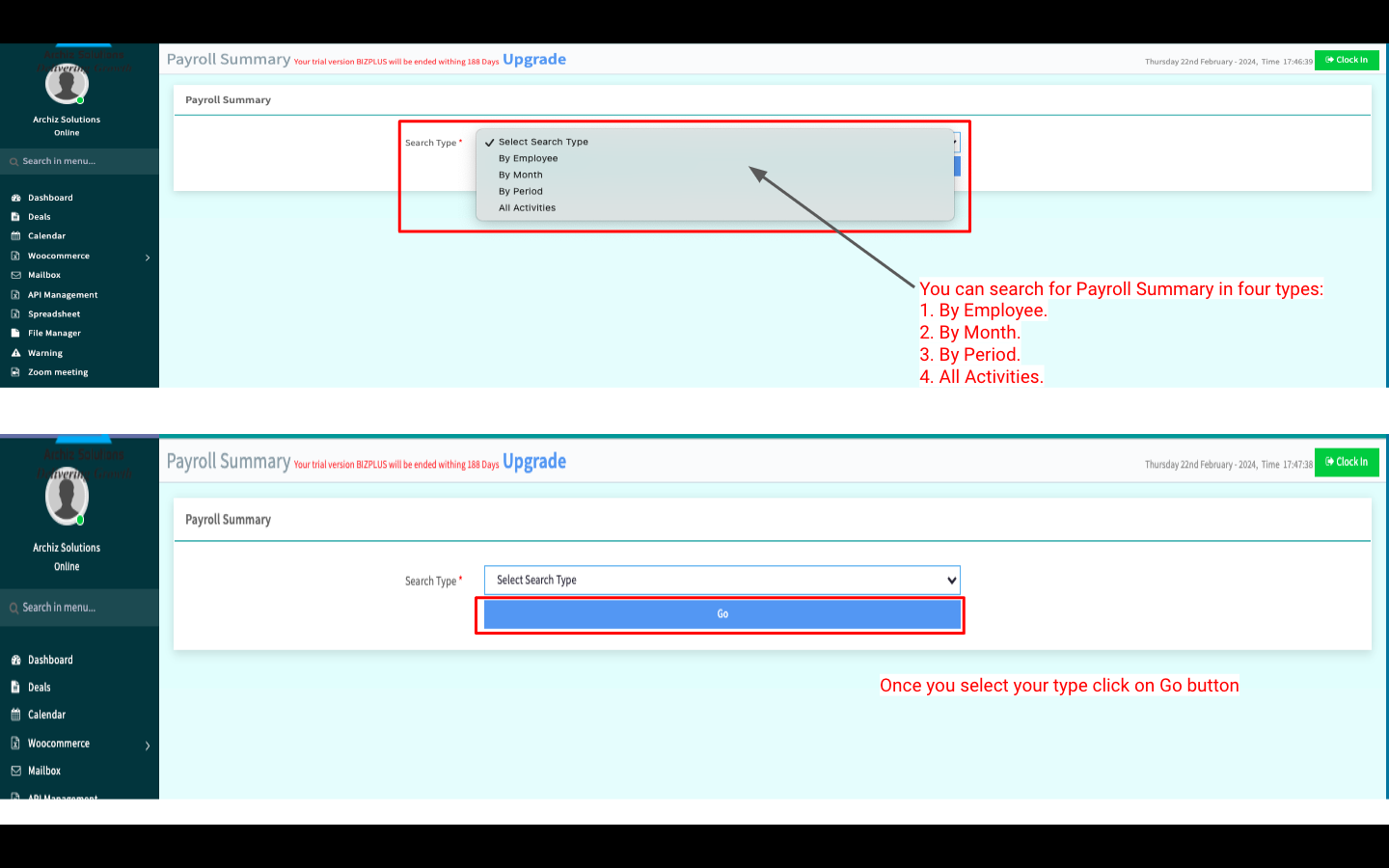
You can search for Payroll Summary in four types: 1. By Employee, 2. By Month, 3. By Period and 4. All Activities.


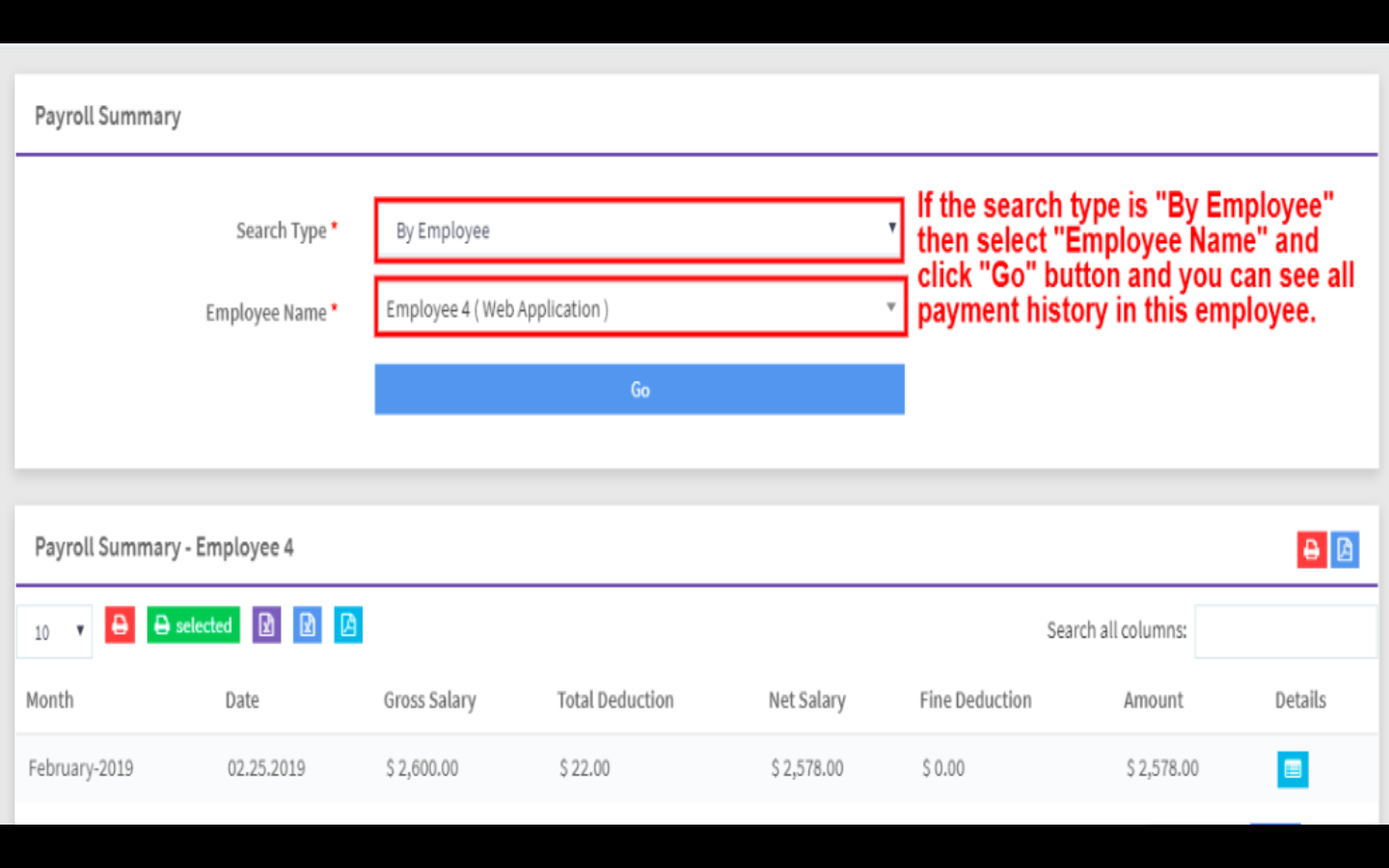
By Employee:

To Search Payroll Summary by Employee, you have to select “By Employee” in Search Type. Then Select Employee name and click “Go” to Generate Payroll Summary by employee.


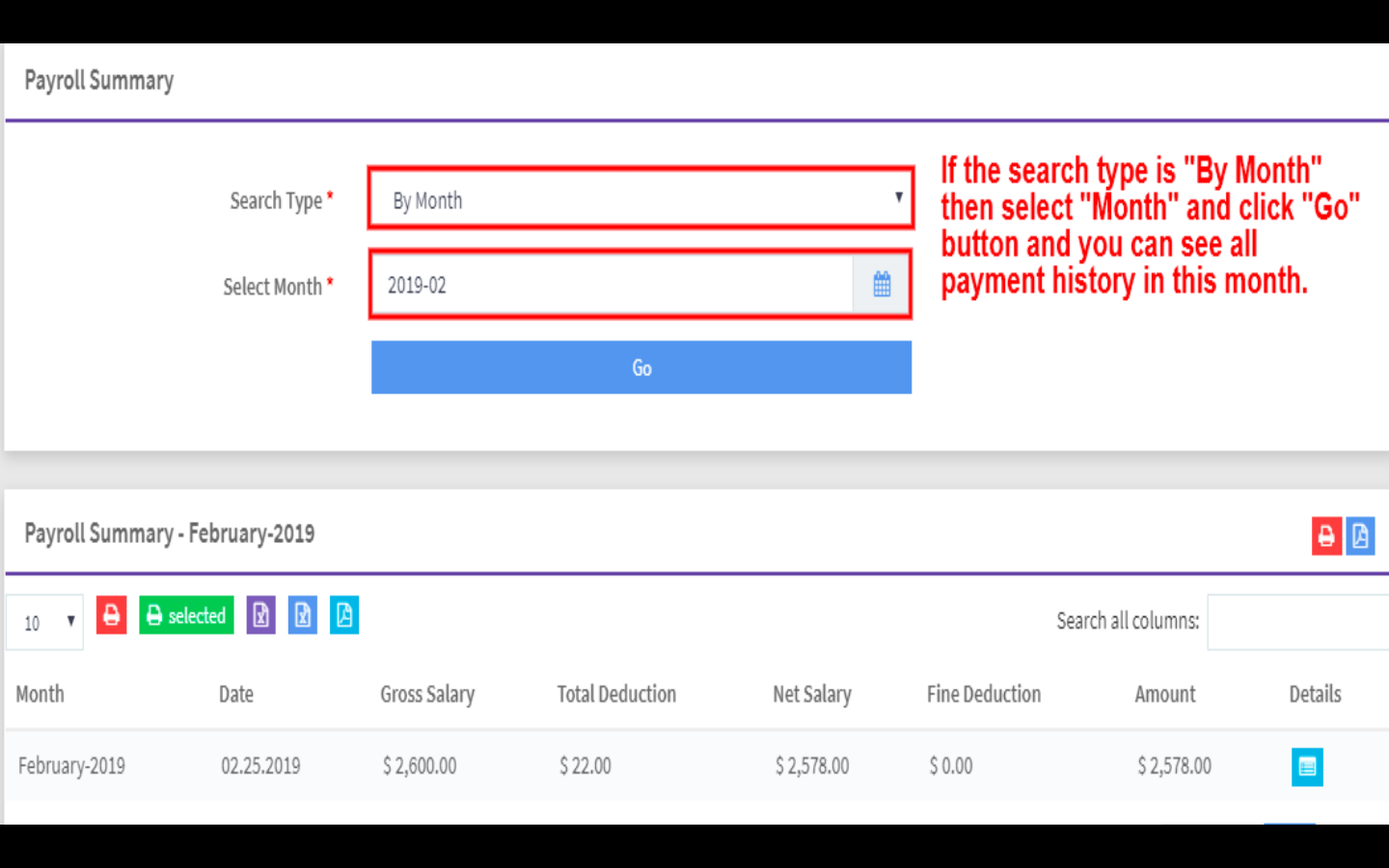
By Month:

To Search Payroll Summary by Month, you have to select “By Month” in Search Type. Then Select Month and click “Go” to Generate Payroll Summary by month.


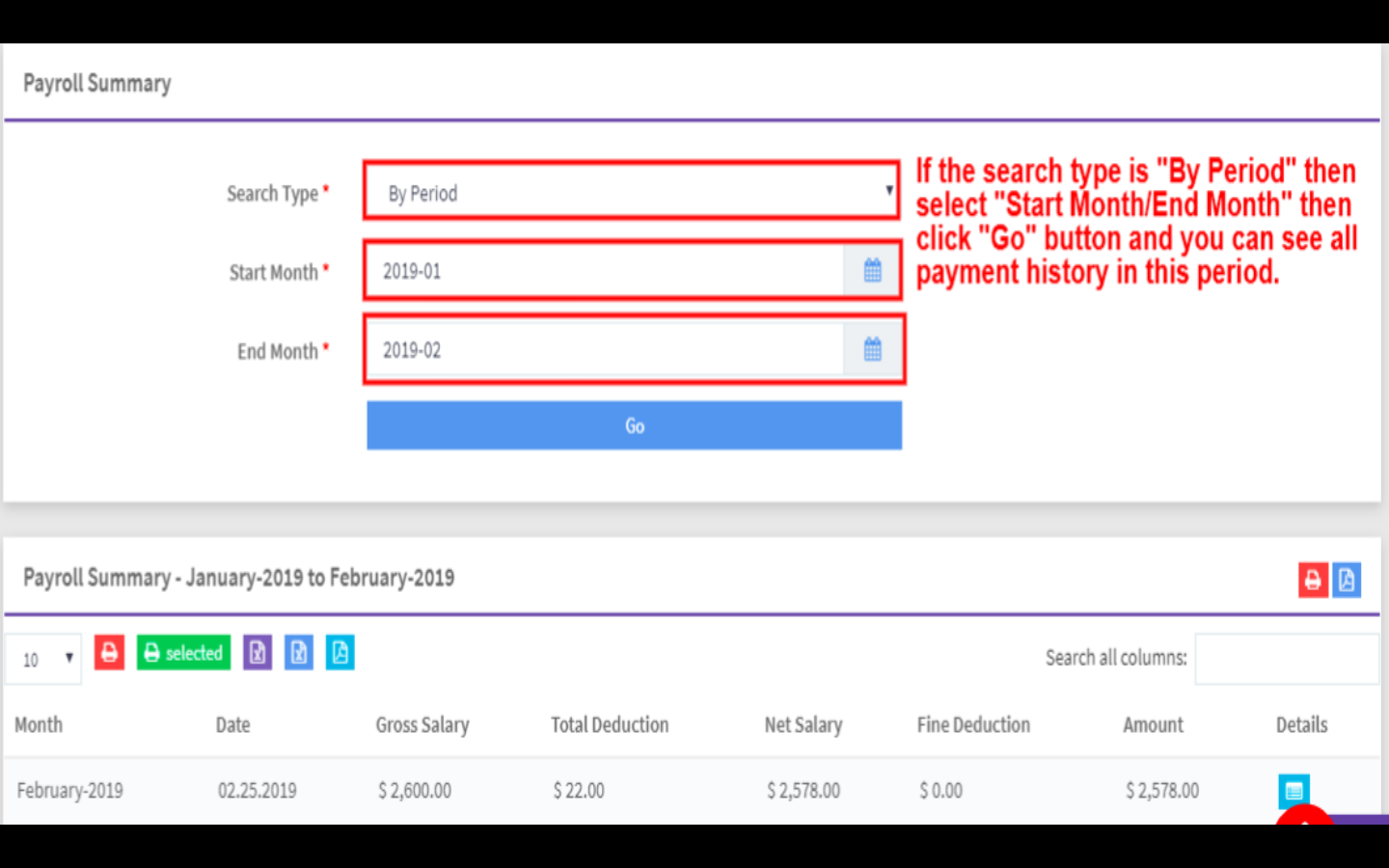
By Period:

To Search Payroll Summary by Period, you have to select “By Period” in the Search Type. Then Select Start Month & End Month and click “Go” to Generate a Payroll Summary by period

All Activities:

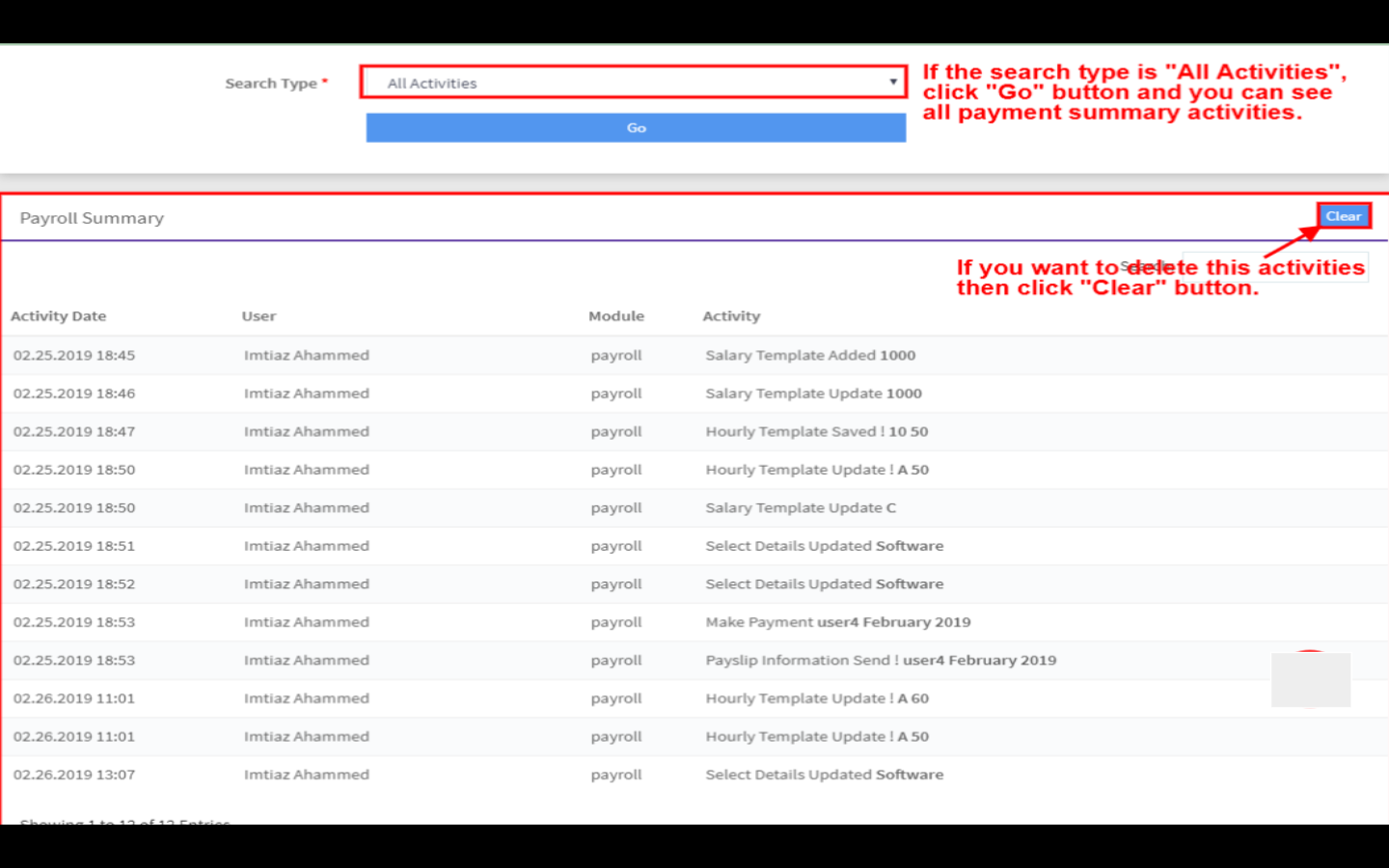
To Search Payroll Summary by All Activities, you have to select “All Activities” in Search Type. Then  click “Go” to Generate Payroll Summary by All Activities.


Click the Payroll” button then click  “Advance Salary”.


Advance Salary Report:


Click the Payroll” button then click  “Provident Fund”.


Click Payroll” button then click  “Overtime” to See all Overtime.

Admin can Approve or Reject an Overtime, Edit or Delete an Overtime.


New Overtime:

You can Create a New Overtime by clicking “New Overtime”. Fill up all info in the Pop-Up menu and click “Save” to Save the New Overtime.


Click Payroll” button then click  “Employee Award” to see all Employee Award.

You can Add a New Award, Edit or Delete an existing Award.


Give Award:

You can Create a New Award by clicking on “Give Award”. Fill up all info in the Pop-Up menu and click “Save” to Save the New Award.

All Employee Award List:

You can View all Employee Award by clicking on “Switch”. You can Print Awards, Download as XLSX, CSV or PDF Format.