Sales

Click On "Sales" and then Click on "Invoice"

Click on "All Invoices" you can view all the invoices created in the system. You can also edit or delete any invoices .


Click On "Create invoices" to create a new invoice.

Fill all the required fields like  Ref No, Client Name,Invoice  date, Due Date, Select Discount type and permission etc

Your use the given buttons to  Reset, Save As Draft  and update Invoice


Click On "Sales" and then Click on Estimates

From All Estimate, You can see all the Estimates which are created in the system.

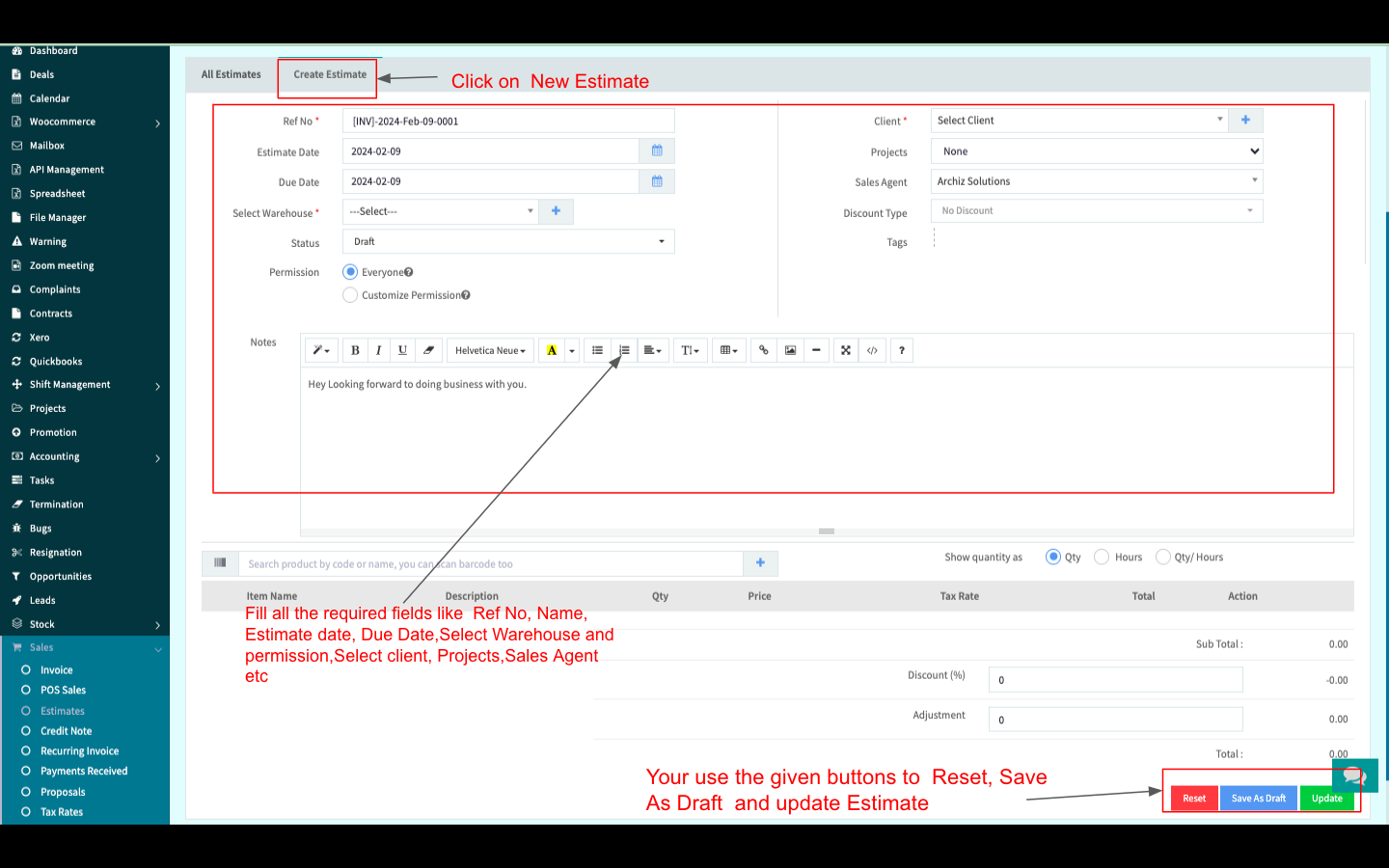
If you want to create a new Estimate click on "Create Estimate"

Fill all the required fields like  Ref No, Name, Estimate date, Due Date, Select Warehouse and permission, Select client, Projects, Sales Agent etc


Click the “Sale button then click  “Proposals” to see all Proposals.

You can Create New Proposals, Download all invoices as Zip files, Print Proposals, Download Proposals (XLSX, CSV, PDF Format), and View more details. You can also Modify or apply More Actions in an existing proposal like other menus like Invoices and estimates.

Create Proposals:

You can Create a New Proposal by clicking “New Proposals” beside “All Proposals”.  Fill up all the info and click “Save” to Create the New Invoice.


Click the “Sale button then click  “Tax Rates” to see all Tax Rates.

You can Create New Tax Rates, Print Tax Rates, Download Invoices (XLSX, CSV, PDF Format), View more details. You can also Edit or delete an existing invoice.

Create New Tax Rates :

You can Create a New Tax Rate by clicking “New Tax Rate” besides “Tax Rates”.  Fill up all info and click “Save” to Save the New Tax Rate or click “Save & Add More” to Save the New Tax Rate and Add another one